Why devices slow down over time
Most people assume an aging device slows down because the processor wears out. That is rarely accurate. Processors do not degrade in the way a battery does. What actually happens is that software grows more demanding over time: operating system updates require more memory, apps add features that consume more resources, and browsers alone now use RAM that would have seemed extravagant a decade ago.
The result is that hardware which handled the software of three years ago may genuinely struggle with the software of today, not because anything broke, but because the goalposts moved. Understanding which component is the limiting factor is what separates a targeted fix from an expensive, unnecessary upgrade.
For a broader look at how your habits affect device lifespan, see device longevity habits.
Storage: the most common culprit
Storage is where most devices actually bottleneck. Two separate issues cause this: storage type and storage fullness.
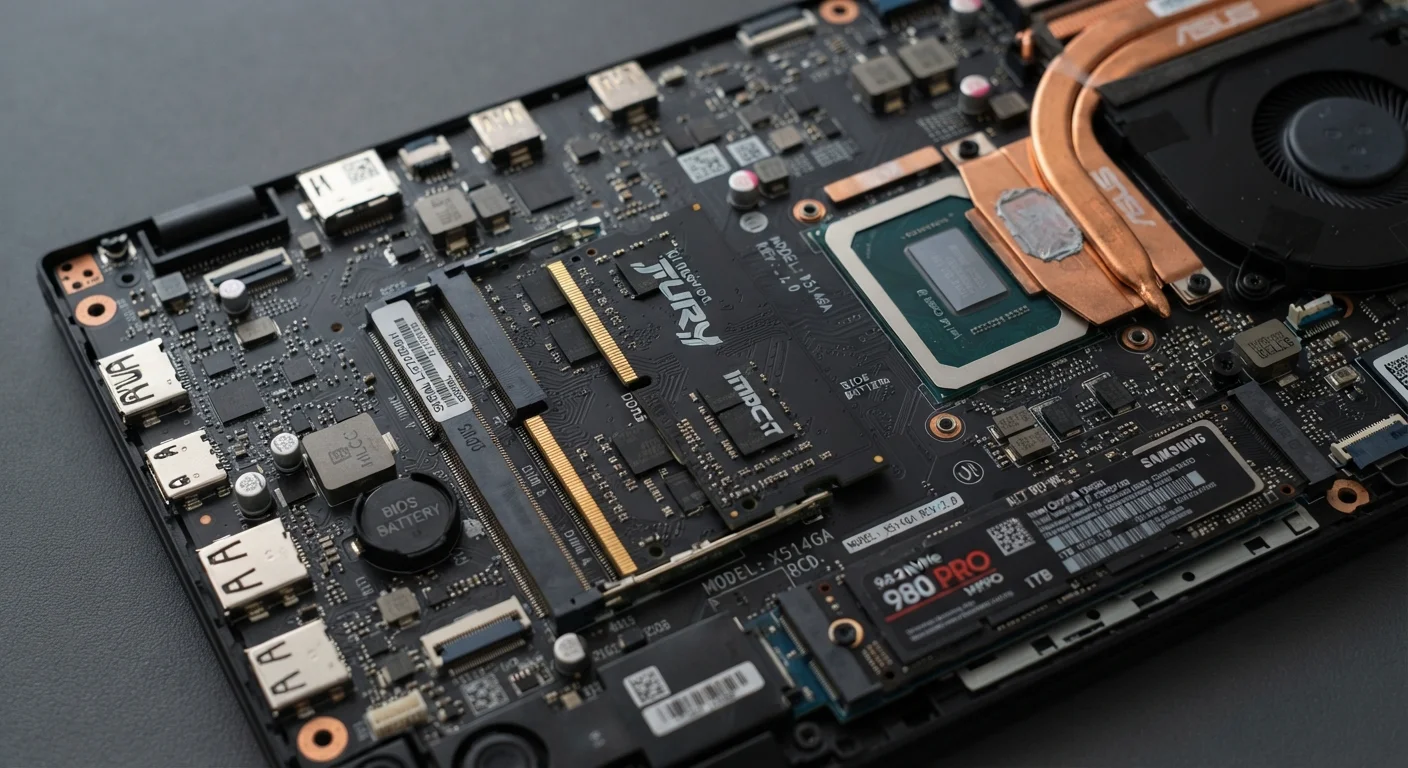
Storage type matters enormously. A traditional HDD (hard disk drive) spins a magnetic platter to find and retrieve data. An SSD (solid-state drive) reads flash chips with no moving parts. The speed difference is not marginal. HDDs typically deliver sequential read speeds around 100 to 150 MB/s. SSDs commonly reach 500 MB/s or higher, and NVMe SSDs (a faster interface used in many modern laptops) can exceed 3,000 MB/s. When a device boots slowly, takes a long time to open apps, or freezes briefly during routine tasks, an HDD is often the explanation.
Storage fullness matters separately from type. Operating systems write temporary files constantly. When a drive has very little free space, the system has to search harder for room to write, and on SSDs the performance drop becomes measurable below roughly 10 to 15 percent free capacity. Clearing unused files, uninstalling apps that no longer get used, and offloading large media files to an external drive are practical steps before any hardware change.
5-10x
Typical speed difference between HDD and SATA SSD
Sequential read performance comparisons between consumer HDDs and SATA SSDs consistently show this range across independent hardware benchmarks.
100%
Disk utilization at which Windows performance drops sharply
Windows Task Manager flags disk utilization at or near 100 percent as a common cause of system-wide slowdowns, often linked to HDD use or near-full storage.
8 GB
RAM floor for current mainstream operating systems
Both Windows 11 and macOS Ventura and later versions list 8 GB as the minimum recommended RAM for standard use, up from 4 GB for earlier versions.
If unfamiliar terms in spec sheets are a barrier, the electronics shopper's glossary covers storage types and interfaces in plain language.
RAM: what happens when you run out
RAM (random-access memory) is the workspace a device uses for tasks it is actively handling. When a program opens, it moves from storage into RAM because RAM is far faster to read and write than any drive. When RAM fills up, the operating system starts using a portion of the storage drive as an overflow area, a process called virtual memory or swap. Because storage is so much slower than RAM, a device that has run out of RAM and is swapping heavily feels dramatically sluggish: apps freeze, switching between windows stalls, and the system may become nearly unresponsive.
The practical signal is that slowdowns happen specifically when multiple things are open at once, and the device recovers when tabs or apps are closed. That pattern points to RAM, not processor speed.
It is worth noting that some devices, particularly phones and many tablets, use RAM that is soldered to the board and cannot be upgraded after purchase. For those devices, the RAM available at the time of purchase is the ceiling, which is one reason to consider future software demands when buying rather than only current needs.
Processing speed: when it matters and when it doesn't
Processor speed gets the most attention in marketing, but for most households it is the least likely bottleneck in everyday use. Tasks like browsing the web, writing documents, sending email, and streaming video do not heavily tax modern processors. Even mid-range chips handle these comfortably.
Where processor speed genuinely matters: video editing, 3D rendering, compiling software, complex spreadsheets with thousands of calculations, and high-frame-rate gaming. If none of those describe a household's typical use, processor upgrades rarely produce the speed improvement people expect.
There is also a secondary factor worth understanding. Most modern processors have multiple cores, which means they can handle several tasks simultaneously. A processor with four cores running at a modest clock speed often outperforms a dual-core processor with a higher clock speed on everyday multitasking, because real workloads split across cores rather than needing one core to run faster.
Check resource use before buying anything
Opening the Task Manager on Windows or Activity Monitor on macOS during a slowdown takes less than a minute and often identifies the exact bottleneck. A drive running at 100 percent utilization, RAM at capacity, or a single runaway process are each visible immediately and each point to a different solution. Diagnosing first avoids spending money on hardware that will not solve the actual problem.
Some slowdowns that seem like hardware limitations are actually software problems. common electronics myths addresses several beliefs about device performance that the evidence does not support.
Diagnosing before spending
Every major operating system includes a built-in tool for checking resource use in real time. On Windows, the Task Manager (Ctrl + Shift + Esc) shows which processes are consuming CPU, RAM, and disk activity. On macOS, Activity Monitor provides the same view. Looking at these during a slowdown often reveals the cause immediately: a drive running at 100 percent utilization, RAM fully consumed with little headroom, or a single background process monopolizing the CPU.
That information changes the calculus on upgrades. A device with 4 GB of RAM that constantly hits its ceiling will respond dramatically to more RAM. A device with a fast SSD and ample RAM that runs slowly likely has a software problem worth addressing first. Buying new hardware to solve a software issue wastes money and leaves the underlying problem in place.
For related reading on how other hardware factors affect device health, battery degradation and device health covers another area where understanding the mechanism leads to better decisions.